
Dictation is free · no ads · no account
Your voice on the phone. Text straight into the chat.
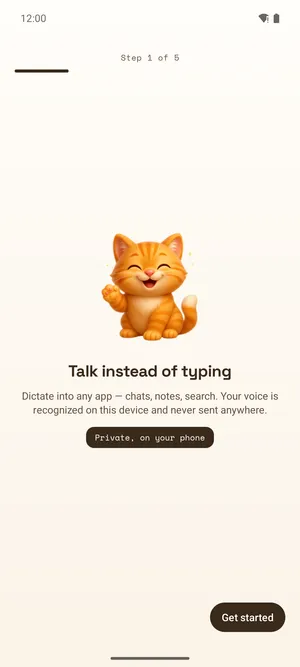
Tap the microphone on your keyboard, speak — the words land in the message. Speech is recognized on the phone itself: no internet, no account, nothing sent anywhere.
- Works offline
- Nothing leaves your phone
- Free dictation
- 99languages on the phone
- $0to dictate
- 0bytes leave the phone
- 9+Android version
Sweet Whisper for Android is a voice keyboard: you dictate where you already type, and speech is recognized on the phone itself. Below: how to install it, what the first run looks like, and how to use it day to day.
Install Two ways to install
- Open the RuStore listing and press Install.
- Launch the app — the wizard picks a model that fits your phone.
Only available in Russia. Updates install automatically, and the floating button works without extra steps.
Install the APK
Heads-up: on Android 13 and newer, apps installed from a file can’t turn on the floating button until you allow it by hand — step 6 below shows how. The keyboard and dictation work right away.
Download the APKThe file is signed with our key. Android will ask once whether you trust the source you are installing from — step two explains what to answer.
Download the file
Tap the button above — the APK lands in your Downloads. We serve it from our own site only; do not trust builds found anywhere else.
Allow installs from this source
Open the downloaded file. Android will ask whether you trust the browser or file manager you are installing from: tap “Settings” and turn on “Allow from this source.” You grant this once, and only to that app.
Install
Go back and tap “Install”. If Play Protect warns about an unknown app, choose “Install anyway” — that is how the system greets any app from outside the store.
Turn the keyboard on
Android Settings → “System” → “Keyboard” → “On-screen keyboard” → enable Sweet Whisper. Your usual keyboard stays exactly where it is; this one is added next to it. The in-app setup guide opens that screen for you.
Pick it in a text field
In any app, tap a text field and press the microphone or globe on your keyboard — Sweet Whisper appears in the list. That tap is the gesture you will use to dictate.
If you want the floating button
The button that floats over other apps (part of Pro) needs the “Accessibility” permission, and Android will not let you grant it to an app installed from a file: the switch shows up greyed out. Tap it anyway — the message that appears names the exact place where the restriction is lifted. Usually: Settings → Apps → Sweet Whisper, then “More” or ⋮ at the top right, and “Allow restricted settings”. Installing from a store skips this step.
The first run
The guide asks for two things
Microphone access, so it can hear you, and the keyboard toggle, so you can call it from other apps. Nothing else is ever requested.
A model is chosen for you
The app checks your phone’s memory and processor and suggests a model that will run well. Accept it or pick another from the catalog.
Download the model
This is the one moment internet is needed. Downloads resume where they stopped, there is a Wi-Fi-only guard, and if Hugging Face is unreachable for you the app falls back to our mirror.
Try it out
The last step of the guide is an ordinary text field: switch to Sweet Whisper and say a short sentence. Exactly the same gesture works in any chat.
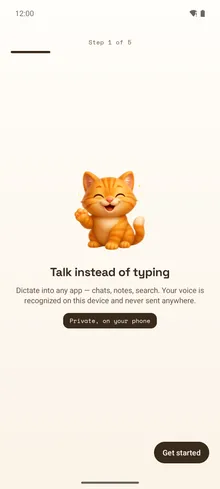
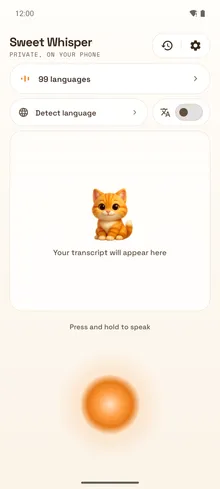
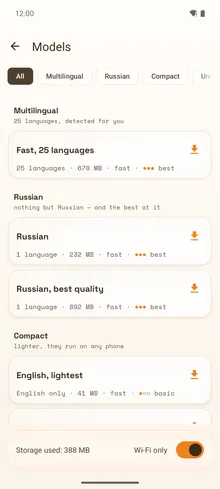
What it looks like Four screens, and you get the idea
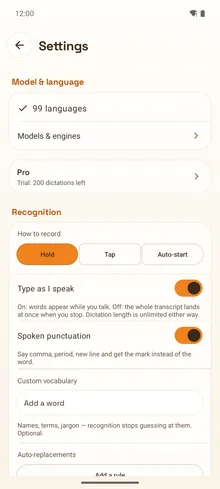
How to dictate
You don’t dictate in the Sweet Whisper app; you dictate wherever you’re writing. You’ll rarely need to open the app itself: it holds a notepad, your history and settings.
- Tap a text field — as usual, with your own keyboard.
- Press the microphone or globe on that keyboard and pick Sweet Whisper.
- Hold the button and talk, let go — the text appears in the message.
- Don’t like holding? Switch to tap, or turn on auto-start — the mic opens as soon as the keyboard does.
- The “↺” button puts everything back if the wrong text landed.
- Say “comma” or “new line” and the mark is inserted instead of the word (a setting).
- Language and translate-to-English switch right in the bar and apply to your next dictation.
Models, and where to switch them
Multilingual · Parakeet670 MB
25 languages, detected automatically, punctuation included. Fast and accurate, but it needs more storage and memory, so it’s best on newer phones.
Compact Whisper41–388 MB
Light models that start on any phone: from English-only up to 99 languages. The bigger the file, the more accurate.
Universal Whisper75–874 MB
99 languages plus translation into English. More accurate than the compact ones, but noticeably slower on a phone — expect a wait after each phrase.
GigaAM · Russian only232 MB
A specialist model for Russian, with punctuation and capitals built in. Skip it if you don’t dictate in Russian.
Model and language live in Settings → “Model and language”; the full catalog with downloads and deletions is under “Models and engines”, where you can also see how much space is in use. Only the Whisper models translate: GigaAM and Parakeet transcribe, but never translate.
How it differs from the Windows app
Where the text lands
AndroidIn any app on the phone — via the keyboard
WindowsIn any program — via a hotkey
Where speech is processed
AndroidOn the phone’s CPU, offline
WindowsOn the GPU or CPU, offline
Languages
AndroidUp to 99, depending on the model
Windows90+, three models to choose from
Translation
AndroidInto English, in Pro
WindowsInto any language — in Pro
AI tidying the text
AndroidNot yet
WindowsPro: cleanup, punctuation, formatting
Voice commands
AndroidNot yet — but spoken punctuation is there
WindowsYes, plus launching programs in Pro
Price
AndroidDictation free · Pro: one-time purchase, 200 floating-button dictations to try
WindowsDictation free · Pro: one-time purchase, 14 days to try
It’s essentially the same app: recognition on your own device, nothing sent to the cloud. A phone has no GPU for heavy AI, so text cleanup and voice commands aren’t on Android yet, but dictation itself is just as good. One license covers both: buy once and use it on your computer and your phone.
About privacy
What you say never leaves the phone. The recording lives exactly as long as recognition takes and is then discarded — there is nowhere to send it, because the phone does the recognizing.
- Recognition happens on the device; audio is never uploaded
- No account, no sign-up, no ads, no analytics
- History is stored on the phone only: you can switch it off and wipe it
- Backup is disabled, so history never reaches Google’s cloud
- Password fields are never written to history
- Internet is needed once: to download a model